
This article is part of a series about creating GPX files for South Korea’s Cross Country Cycle Route.
The GPX files we obtained in the previous article include lots of unwanted detail. For example, the Hangang (Seoul section) file includes paths on both sides of the Han River, the ARA file includes paths on both sides of the road, and the other files include some isolated segments and dead ends.
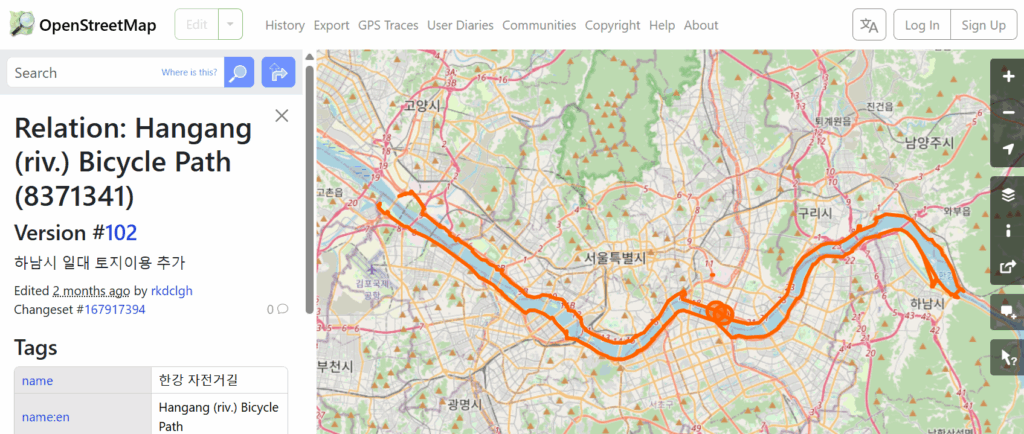
I don’t want to make navigation decisions while I am riding, nor do I want unnecessary details in the files.
GPX Studio (free, online) can be used to remove the unwanted data in the files.
Here’s the process I used to trim out the unwanted detail from each of the separate GPX files.
- Navigate to https://gpx.studio
- Load the file
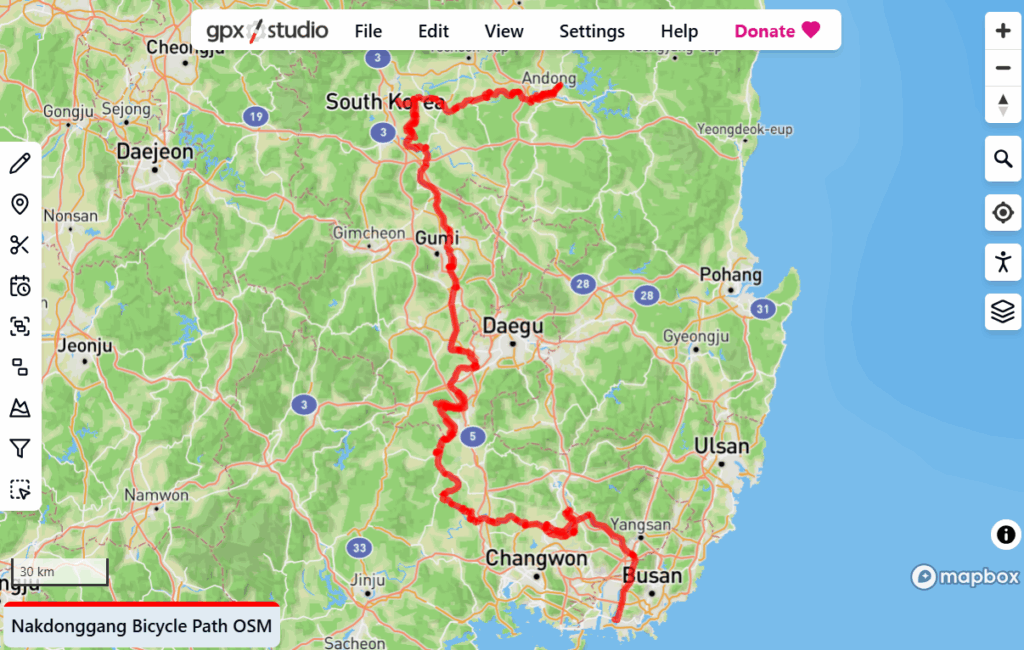
- Select the path using Edit / Select All
- Extract the path into its segments using the tool on the left
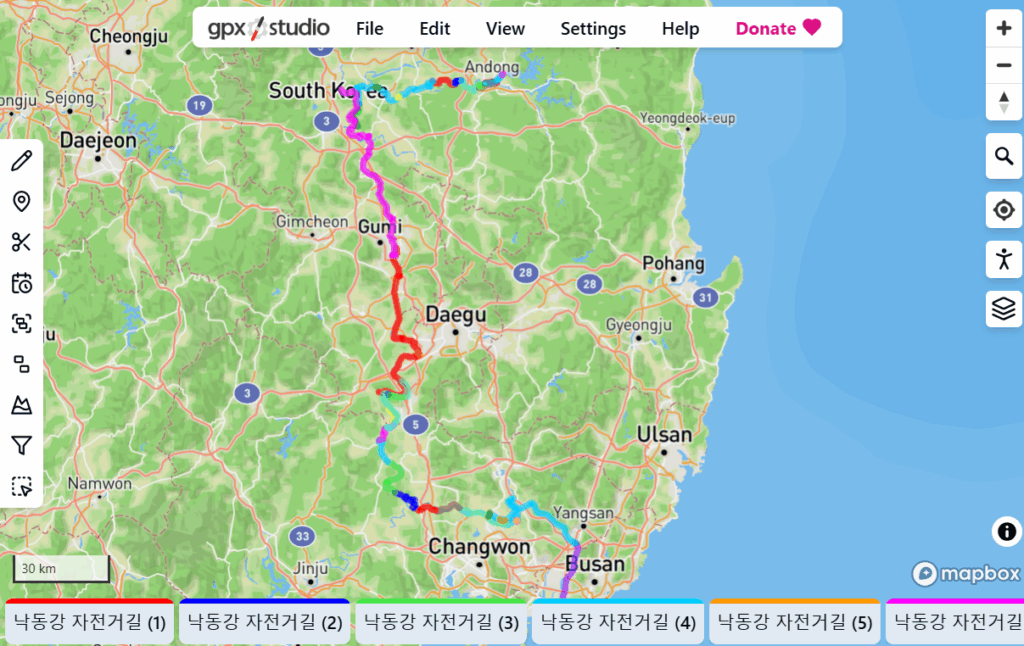
- Select and delete unwanted complete segments (Use Edit / Delete or Ctrl+Backspace)
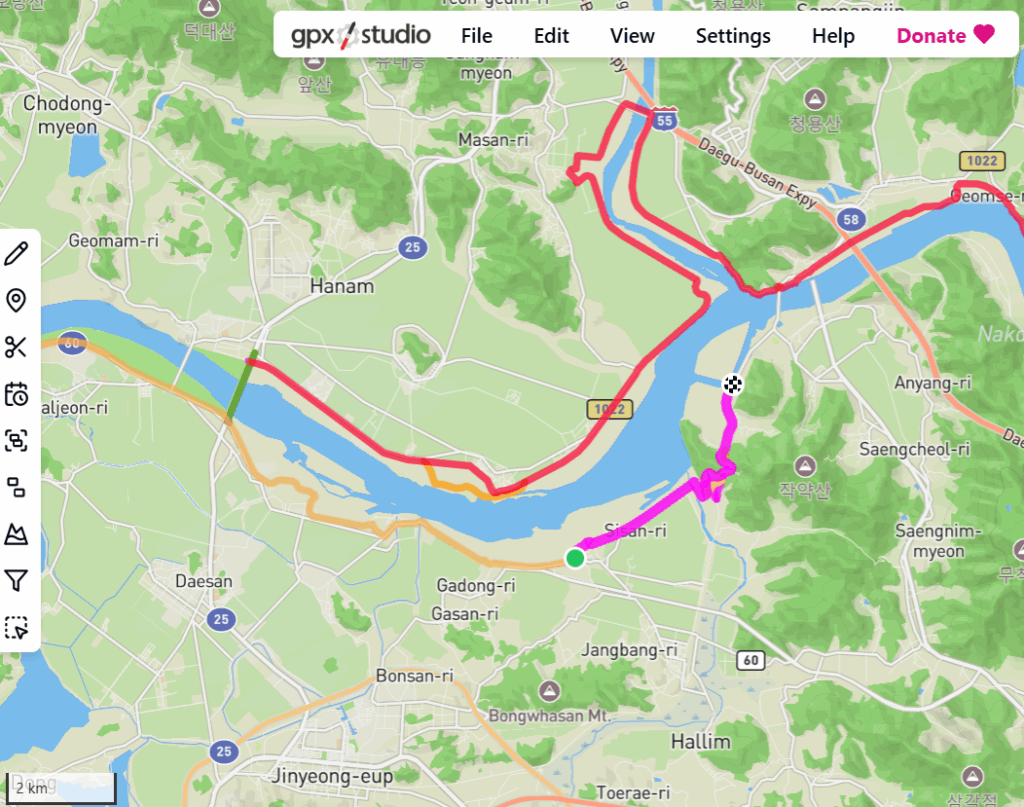
- Crop any segments that are only partially useful, using the scissor tool
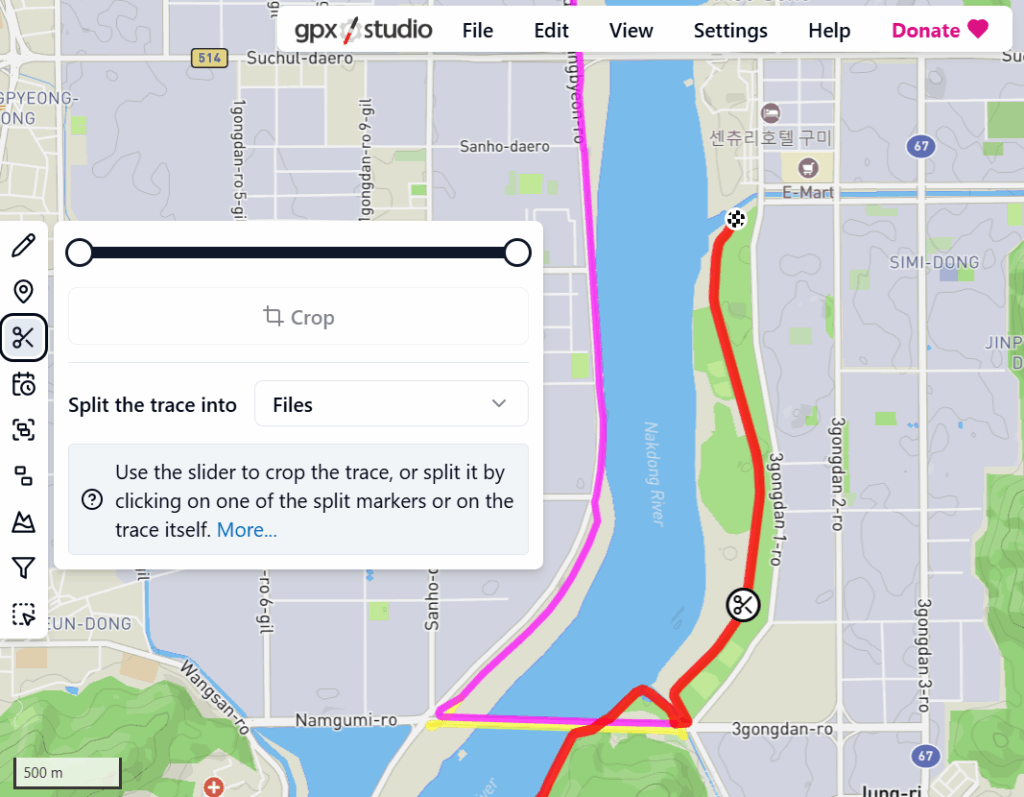
- Review the whole path, deleting and cropping as desired.
- Select all the remaining segments and merge them together
- It is best to use the option “Merge the contents and keep the traces disconnected”
- Export the data (File / Export). Give the file a recognisable name, for example, “ARA Bicycle Path Trimmed.gpx”
The next article in the series is Merging the GPX files.